Ask mode
Ask mode is the default mode for new tabs. You type a question, the model reads context from your vault files, and the answer streams back into the tab. This page also documents the controls shared with Draft mode: the generation toggles and the answer area work the same way in both.
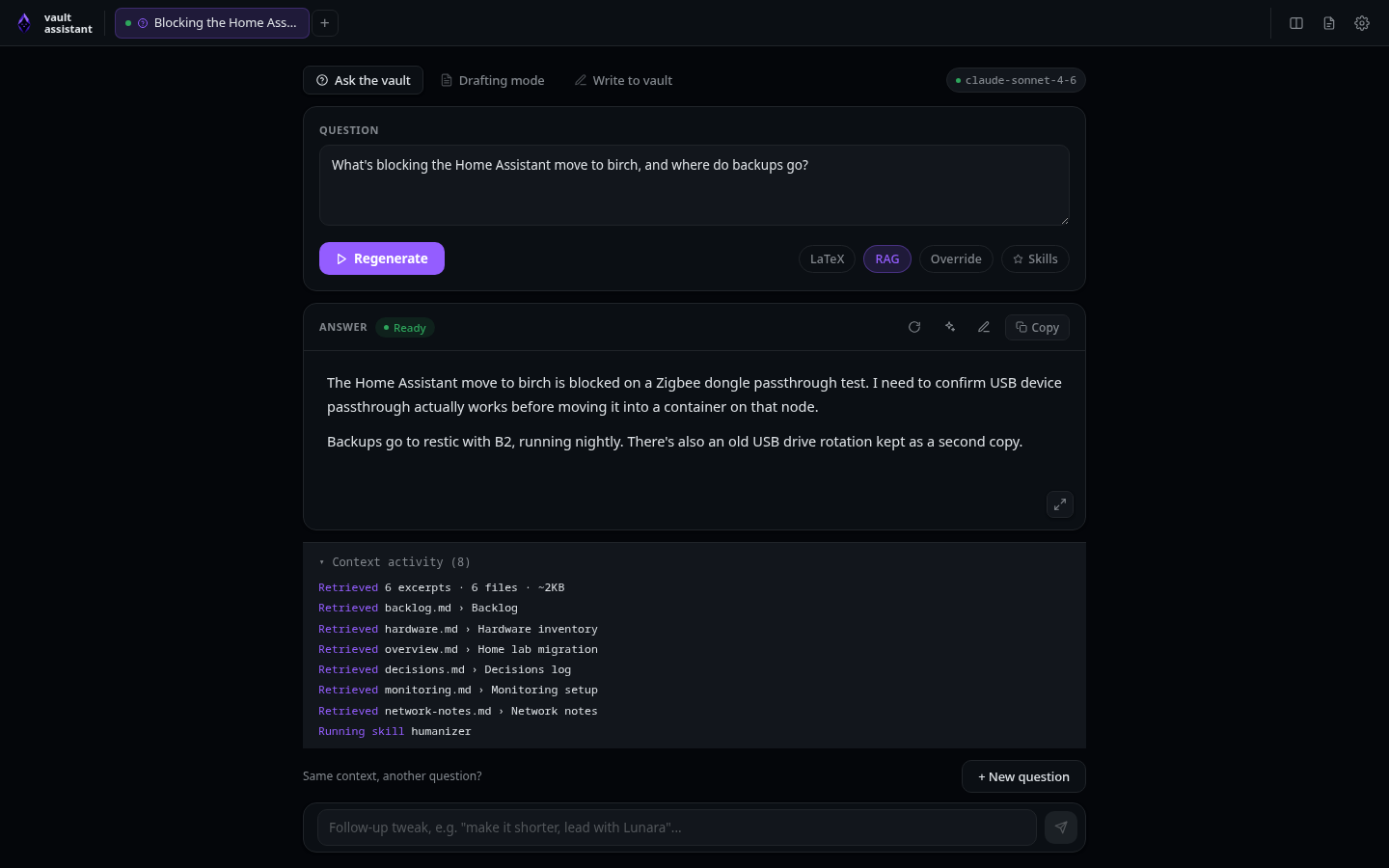
Mode bar controls
Each tab features a mode selector bar at the top of its editor panel:
- Ask the vault button: Switches the tab to Ask mode. Low-level action: updates the tab record's
modeattribute toaskin state. This hides the job description context field and targets the prompt at answering general queries. - Drafting mode button: Switches the tab to Drafting mode. Low-level action: updates the tab record's
modetojob. This reveals the job description context field and configures the system prompt to write structured, first-person application answers. - Write to vault button: Switches the tab to Write mode. Low-level action: updates the tab record's
modetowriteand replaces the Ask/Draft editor card with the customVaultWriterpanel. - Model/Engine badge: Displays the active engine and model in the right corner. Hovering over the badge reveals the full engine name, model identifier, and reasoning level.
Question input and generation controls
- Question textarea: Enter the target question to answer. Low-level action: updates
tab.questionin state. PressingEnterwithout modifiers triggers the generate action. PressingShift+Enterinserts a newline. - Ask / Generate / Regenerate button (Play icon): Submits the prompt. Low-level action: POSTs to
/api/tabs/:id/generate. The server resolves settings, parses attachments, index-scans vault files, calls the model, streams text deltas via Server-Sent Events, and runs the optional humanize pass. - Stop button: Appears only while a generation is running. Click to cancel. Low-level action: POSTs to
/api/tabs/:id/cancelwhich callscancel()in runner.ts. This triggersabort()on the session's activeAbortControllersignal, immediately killing the child CLI process or API stream.
Generation toggles
These toggles sit under the question field and apply in both Ask and Draft modes:
- LaTeX toggle button: Click to generate a formatted PDF. Low-level action: sets
tab.latextotrue. The server appends LaTeX instructions to the prompt, extracts the model's output code, compiles it usingtectonic --untrusted, and caches the PDF. - RAG toggle button: Click to toggle Retrieval-Augmented Generation. Low-level action: sets
tab.ragtotrue. Before generating, the server callsretrieveForQueryin rag.ts to score vault chunks using the BM25 algorithm, injecting only the top matches (~12 KB budget) into the prompt. - Override toggle button: Click to reveal tab-specific model settings. Low-level action: sets
tab.overrideEnabledtotrue.- Engine selector: Selects a custom model provider. Low-level action: updates
tab.override.engine. - Model selector: Selects a custom model ID. Low-level action: updates
tab.override.engineModels. Selecting "Other..." reveals a text input to type custom model strings. - Effort selector: Selects a reasoning budget. Low-level action: updates
tab.override.engineReasoning. Selecting "Other..." reveals a text input for custom reasoning settings. - Vault / context repo path input: Type an alternate vault directory. Low-level action: updates
tab.override.vaultDir.
- Engine selector: Selects a custom model provider. Low-level action: updates
- Skills picker button: Click to select which custom skills to apply. Low-level action: opens a dropdown selection menu listing all installed
SKILL.mdfiles. Selecting skills adds their names to thetab.skillsarray, and the server injects their instructions into the generation prompt.
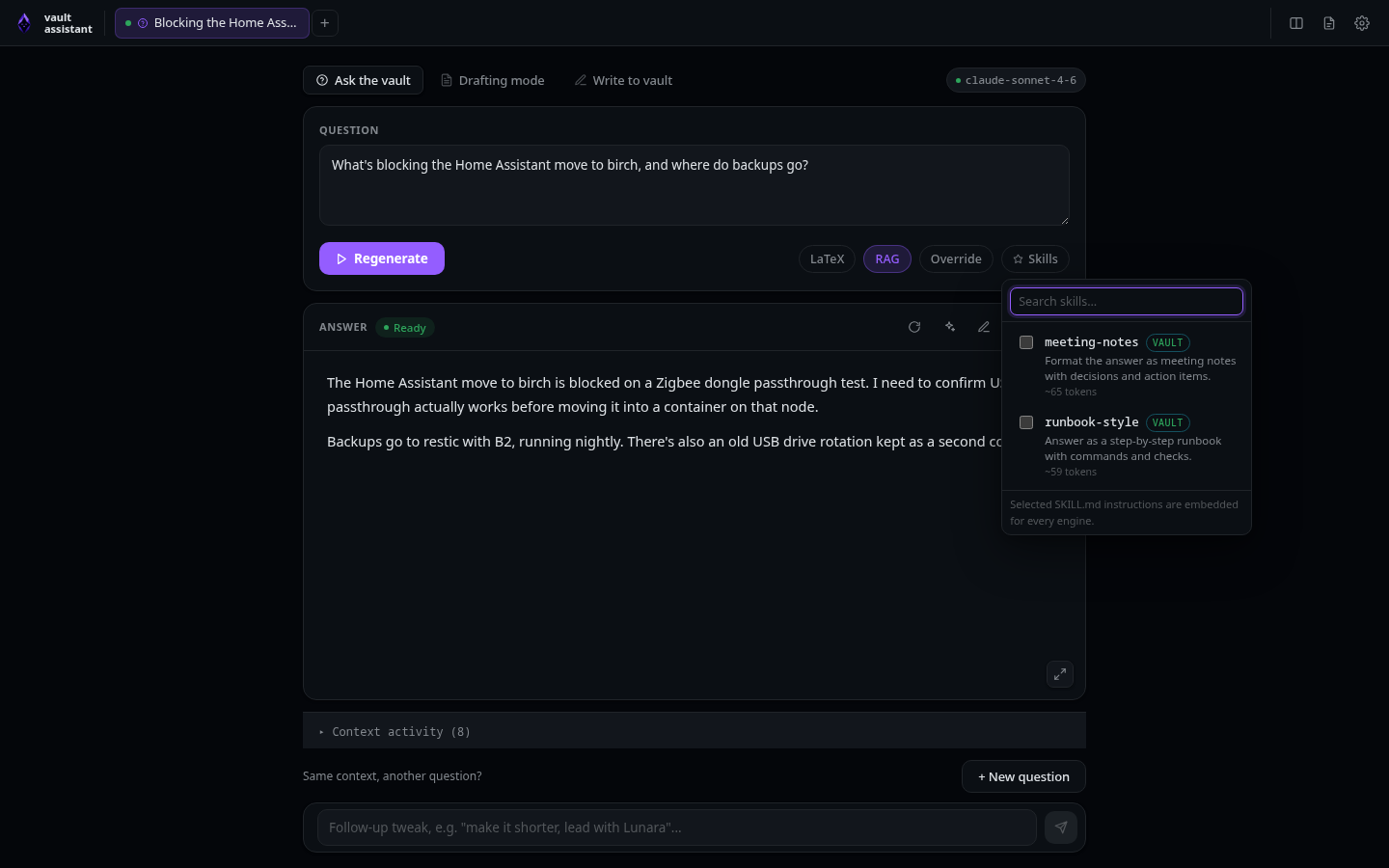
Answer area and follow-up actions
The bottom half of the tab displays the generated answer, execution logs, and follow-up controls:
- Format / Clean up button: Located next to the generated response. Click to run the humanizer pass. Low-level action: POSTs to
/api/tabs/:id/cleanupto feed the active response text back to the model with thehumanizerskill instructions. - Download .tex button: (LaTeX mode only). Click to save the raw LaTeX code. Low-level action: triggers a browser download of the text stored in
tab.texSource. - Download .pdf button: (LaTeX mode only). Click to save the compiled PDF. Low-level action: triggers a browser download pointing to
/api/latex/:id/pdf. - Recompile LaTeX button: (LaTeX mode only). Appears next to the PDF log panel. Click to re-run compilation after editing the source code. Low-level action: POSTs the modified text to
/api/latex/compileto execute the tectonic compiler again. - + New question button: Located in the follow-up section. Click to clone the tab. Low-level action: calls
cloneTabForNewQuestion()in store.ts. This creates a new tab with the same context details, attachments, and settings overrides to start a fresh chat branch. - Follow-up input and send button (paper airplane icon): Type refinement instructions and click send. Low-level action: POSTs to
/api/tabs/:id/message. The server sends the text delta to the model along with the active session ID, allowing the model to refine its previous response.
The screenshot at the top of this page shows the whole layout after a generation: the answer, the expanded context activity panel, the + New question button, and the follow-up input.