Settings panel features
The settings panel allows you to customize default models, vault directories, persona prompts, visual themes, and custom skills. Clicking the gear icon (⚙) in the top right header opens the drawer.
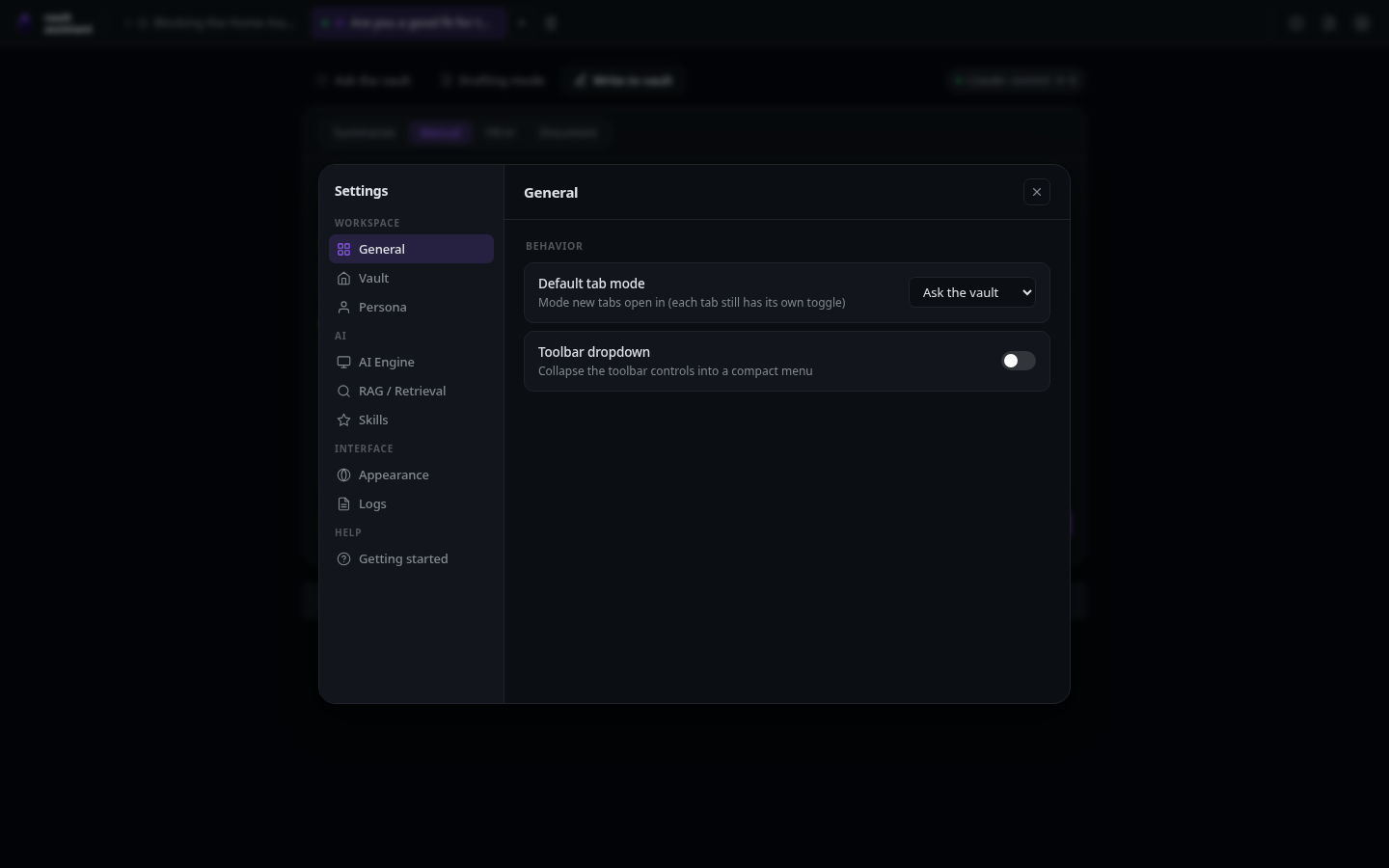
Left navigation pages
The panel organizes options into nine sub-pages:
General page
Customize default tab settings and startup preferences:
- Default Tab Mode selector: Choose whether new tabs open in Ask mode or Drafting mode by default. Low-level action: sets the
jt.defaultmodekey inlocalStoragetoaskorjob. - Default Engine and Model selector: Select the default engine and model. Low-level action: updates
settings.engineandsettings.model.
Vault page
Configure vault folder paths and validate folder contents:
- Vault Directory path picker: Input the absolute path of your local vault. Low-level action: updates
settings.vaultDir. - Choose directory button: Opens your host operating system's native folder picker. Low-level action: calls
GET /api/dialog/select-dirto launch the native dialog, returning the selected path. - Validate Vault button: Click to verify if the path is a valid directory. Low-level action: calls
GET /api/vault/validateto inspect folder contents, returning a list of top-level folders. - Extra Directory inputs: Add or remove paths to search for skills or extra context files. Click the + button to add a path, and click the trash can icon to remove a path. Low-level action: updates
settings.extraDirs.
Persona page
Modify the system prompts used during generation:
- Drafting Persona textarea: Define the persona and rules for Drafting mode. Low-level action: updates
settings.persona. - Ask Persona textarea: Define the persona and rules for Ask mode. Low-level action: updates
settings.askPersona. - User Profile inputs (Name, Role, Voice Notes): Type your details to generate default personas. Low-level action: calls
buildJobPersonaandbuildAskPersonato update the prompt fields.
AI Engine page
Audit system executables and select model targets:
- Default Engine selector: Select active global engine.
- Model selector: Select active global model.
- Effort selector: Select active global reasoning budget.
- Cleanup Model selector: Select model used for formatting/cleanups.
- Cleanup Effort selector: Select reasoning budget for cleanups.
- Rescan paths button: Click to audit installed CLI engines. Low-level action: calls
GET /api/engines/scanto search the systemPATHfor executables (likeagyoropencode), updating available models in the dropdowns.
RAG / Retrieval page
Configure default retrieval settings and web crawlers:
- Use RAG by default checkbox: Toggles whether new tabs enable RAG. Low-level action: updates
settings.rag. - Local web research checkbox: Toggles model search and page read capabilities. Low-level action: updates
settings.webResearchEnabled. - Web research crawler selector: Choose Readability, Auto, or Chromium modes. Low-level action: updates
settings.urlFetchMethod. - Local SearXNG URL input: Enter your SearXNG loopback address. Low-level action: updates
settings.searxngUrl.
Skills page
Install, search, or create custom skills:
- Search field: Type text to filter the list of installed skills.
- Add skill button: Click to open the skill creator dialog.
- Describe skill textarea: Type a prompt describing the skill rules. Low-level action: updates
skillDescribe. - Generate draft button: Click to stream a draft
SKILL.md. Low-level action: POSTs to/api/skills/generateto stream the guide using the model. - Feedback textarea: Type refinement instructions.
- Rewrite button: Click to update the draft. Low-level action: POSTs feedback to
/api/skills/generateto rewrite the document. - Name input: Enter the folder and skill name.
- Description input: Enter a brief summary of the skill.
- Markdown editor area: Edit the final
SKILL.mdbody. - Scope selector (User / Vault): Choose whether to install the skill globally or inside the active vault.
- Save skill button: Click to save the file. Low-level action: POSTs to
/api/skills/createto write the directory and markdown file.
- Describe skill textarea: Type a prompt describing the skill rules. Low-level action: updates
Appearance page
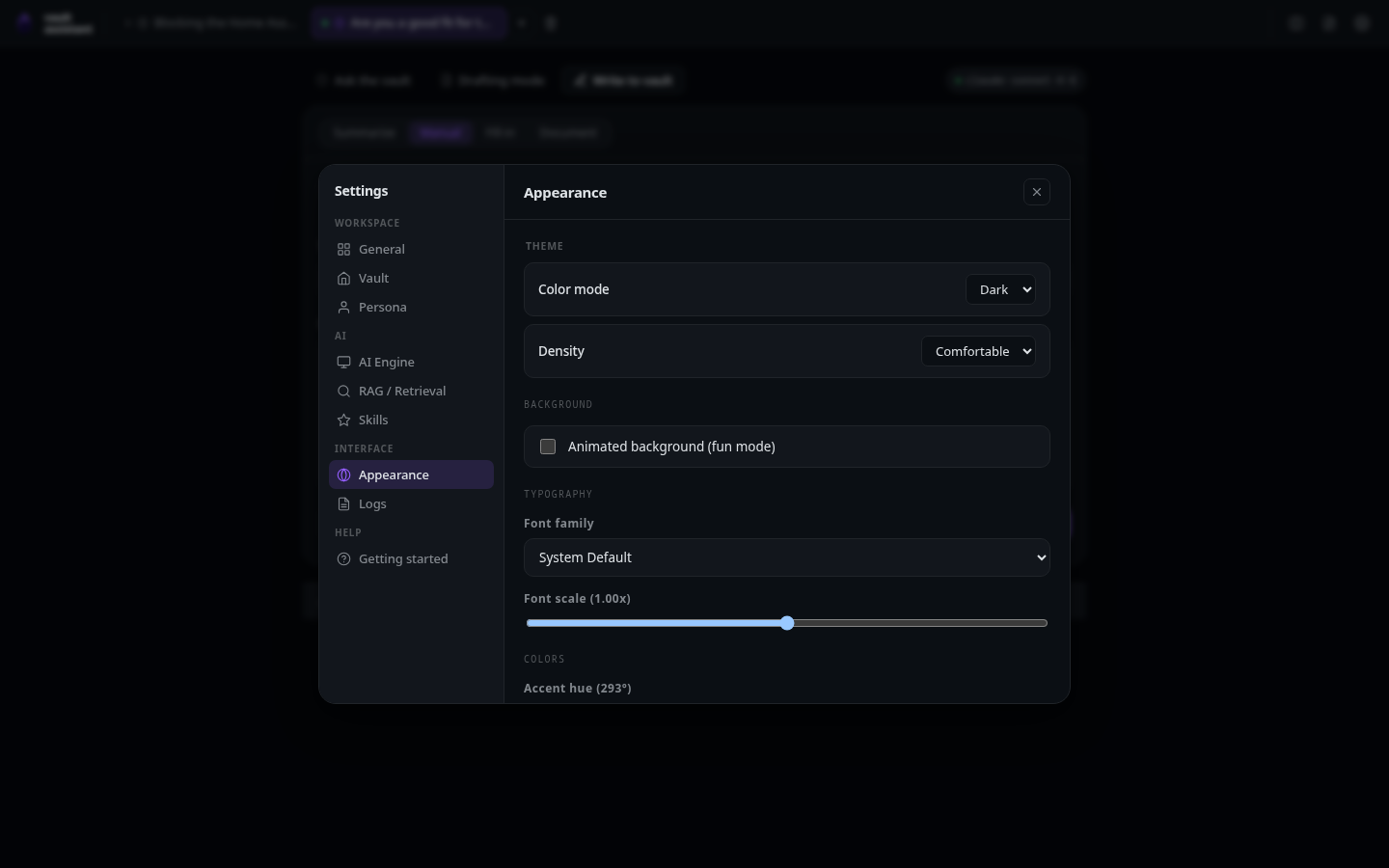
Tweak the design system layout and variables:
- Theme selectors: Toggle dark or light modes.
- Density selectors: Toggle cozy or tight layouts.
- Font selector: Select default display font family. Low-level action: sets
data-font-familyon the<html>element. - Font scale slider: Drag to change text size. Low-level action: sets the
--font-scalevariable on the root CSS. - Accent Hue slider: Drag to change the accent tint color. Low-level action: sets the
--accent-hueOKLCH variable on root CSS. - Accent Chroma slider: Drag to change color saturation. Low-level action: sets the
--accent-chromaOKLCH variable on root CSS. - Border radius selector: Toggle roundness settings. Low-level action: sets
data-radiuson<html>. - Spacing selector: Toggle margin scales. Low-level action: sets
data-spacingon<html>. - Shadow selector: Toggle elevations. Low-level action: sets
data-shadowon<html>.
Logs page
View server events and clean log files:
- Log list: Scroll to read chronological server requests.
- Clear logs button: Click to empty the log history. Low-level action: calls
DELETE /api/logsto clearlogs/activity.jsonlon disk and resets the in-memory array.
Getting started page
Read the onboarding guide and help documentation. Low-level action: renders the static help copy.