Write to vault features
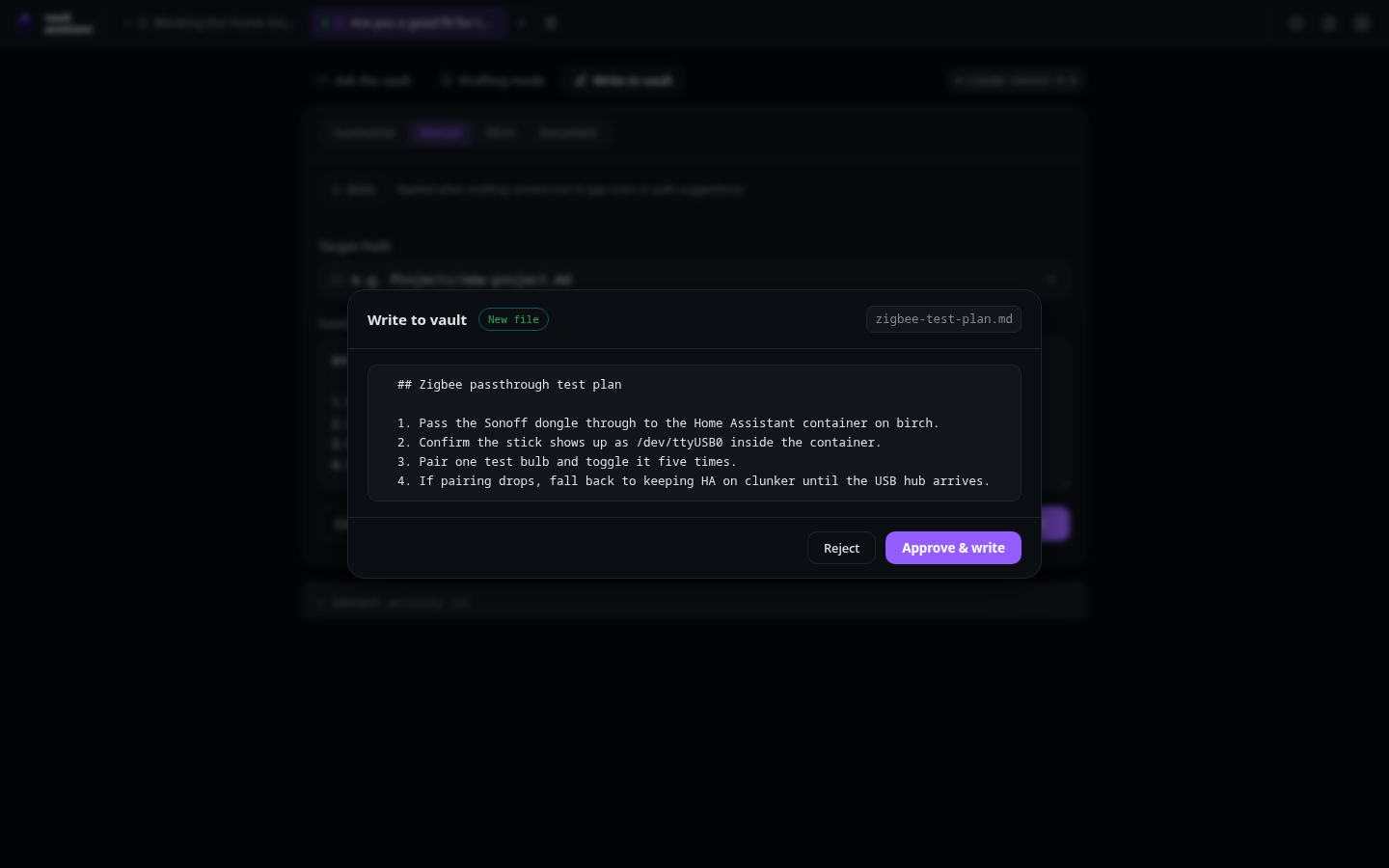
The Write to vault mode lets you add, modify, or format files inside your local vault. Rather than letting the model write files directly, the application uses a secure approval pipeline. Nothing is saved to disk until you review the changes and approve them.
The write approval flow
Every file write in the application goes through the approval flow:
- Write Trigger: Clicking any button to write content (like Write to Vault or Confirm & Write) triggers the write preview.
- Preview Request: The browser sends a POST request to
/api/vault/previewwith the vault-relative target path. - Exist Check & Token Minting: The server verifies the path. If the file exists, it reads the content to generate a diff. The server also mints a random, one-time security token that expires after 10 minutes. The server returns the file status, existing content, and the token to the browser.
- Diff Modal: The interface opens the
ApprovalModalshowing a side-by-side diff of the existing file and the proposed changes. - Approve button: Click this button in the modal to finalize the write. The browser sends the new content and the security token to
POST /api/vault/write. The server checks the token, writes the file to disk, and deletes the token to prevent reuse. - Cancel / Close button: Click this button or press
Escto close the modal. This releases the token without modifying the file.
Write mode sub-tabs
Each tab in Write mode (sets tab.mode = "write") opens the VaultWriter panel. It features a mode-switch selector containing four sub-tabs:
Summarize tab
Use this tab to condense long articles, papers, or web pages into a markdown note:
- Source Content or URL textarea: Paste long text or type a web address starting with
http://orhttps://. Low-level action: updatestab.writeInputin state. - Summarize button: Click this button to start the summary process. Low-level action: POSTs to
/api/tabs/:id/summarize. If the input is a URL, the server uses SearXNG and Readability to fetch the page and extract the main article. The model then generates a structured markdown summary. - Save Path picker: Select or type the vault path where the summary should be saved. Low-level action: updates
tab.writePathin state. - Write to Vault button: Located on the generated summary preview card. Click this button to trigger the write approval flow.
Manual tab
Use this tab to write or edit vault entries by hand, with assistance from formatting and path suggestion tools:
- Target Path picker: Select or type the vault path where the note should be saved. Low-level action: updates
tab.writePathin state. - Content textarea: The markdown editor area where you type the note content. Low-level action: updates
tab.writeInputin state. - Clean up / Format button: Click this button to clean up your note. Low-level action: POSTs to
/api/tabs/:id/write-cleanup. The model corrects grammar, refines the layout, and applies any active skills. It displays the result in a preview panel. - Auto-place button: Click this button to get a recommended file path. Low-level action: POSTs to
/api/tabs/:id/auto-place. The model reviews your note and your vault's directory structure to suggest the most appropriate folder and filename. - Use this button: Located on the formatted preview card. Click this button to overwrite your editor text with the model's cleaned-up draft.
- Write to Vault button: Click this button to open the approval modal and write your note to your chosen target path.
Fill-in tab
Use this tab to scan your vault for missing information and draft entries to fill those gaps:
- Focus Area textarea: Type instructions to focus the gap scan (like "Find missing projects in my portfolio"). Low-level action: updates
tab.writeInputin state. - Directory Scope picker: Select a folder to limit the scan. Low-level action: updates
tab.fillinDirin state. Leaving this blank scans the entire vault. - Scan Vault for Gaps button: Click this button to scan your notes. Low-level action: POSTs to
/api/tabs/:id/fillin-scan. The model analyzes your folder structure and notes to output a list of questions identifying missing context. - Draft Entry button: Located on each discovered gap card. Type a brief answer in the text box and click this button to send a POST request to
/api/tabs/:id/fillin-write. The model drafts a complete, formatted markdown file. - Edit Manually button: Click this button on a drafted gap preview to move the text into the answer box for manual editing.
- Confirm & Write button: Click this button to open the write approval flow and save the drafted entry to its target path.
Document tab
Use this tab to upload a document and let the model propose updates or new files based on its contents:
- Choose PDF or DOCX button (or Replace document): Click this button to select a local document. Low-level action: triggers a hidden file input. Selecting a file uploads it to
/api/attachments. The server extracts the text and holds it in temporary storage. - Focus textarea: Type instructions to guide content placement (like "Propose updates to my Resume file"). Low-level action: updates
tab.writeInputin state. - Analyze & Propose button: Click this button to start the document analysis. Low-level action: POSTs to
/api/tabs/:id/doc-propose. The model reads the extracted text and outputs a list of write proposals. Each proposal includes an action type (create or update), a target path, the proposed content, and a rationale. - Edit manually button: Located on each proposal card. Click this button to toggle a text area so you can edit the proposed file content before saving.
- Dismiss button: Click this button to reject a proposal. Low-level action: sets the proposal status to
rejected, hiding it from the active list. - Review & Write button: Click this button to open the diff preview modal and write the proposal to your vault.